
How do I back up my emails in Outlook?
Backing up your email can be a good practice to get in to if you have emails between friends, family, or co-workers that are too important to risk losing. Thankfully there are several easy ways to back up your emails to a file on your computer with Microsoft Outlook.
1. Drag and drop
This is probably the easiest way to back up your emails:
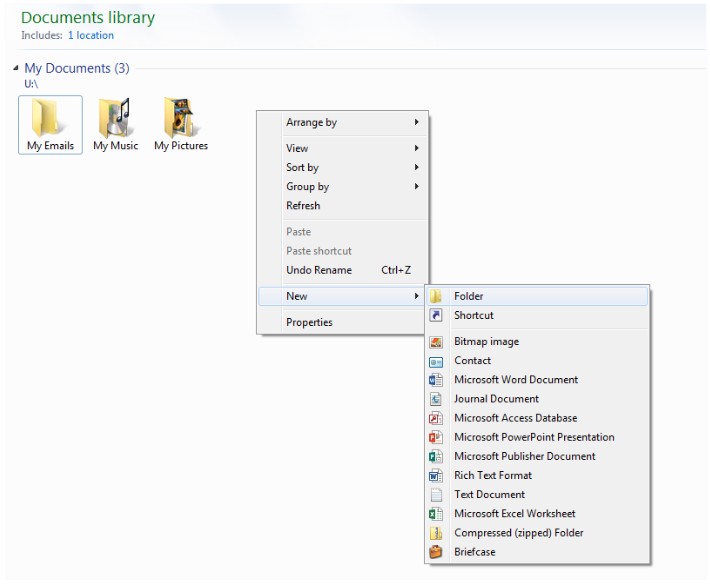
- Create a folder on your computer where you want your emails to be saved. I've created a new folder in "My Documents" called "My Emails" by right clicking on a blank space in the window and selecting "New -> Folder"
- I quite like this email here and want to save it. To do that, all I need to do is drag it into the new folder I just created and I'm done! The email is now saved on my computer. This saves the email as a .msg file which will be opened in Outlook

2. Export all of your emails at once as a .pst
You can do this to save all of your emails in one file
- In Outlook 2013 click on "File" then "Open and Export" and then "Import/Export"

- Select "Export to a file" and click "Next"

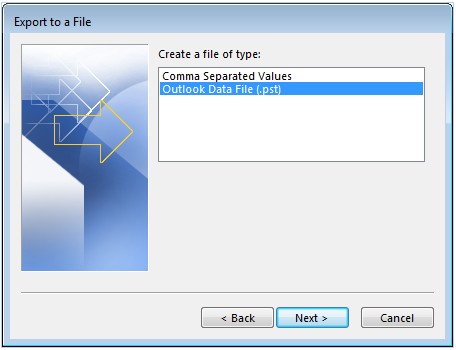
- Select "Outlook Data File (.pst)" and click "Next"
- Select the folders containing the emails you want to save and then click "Next"

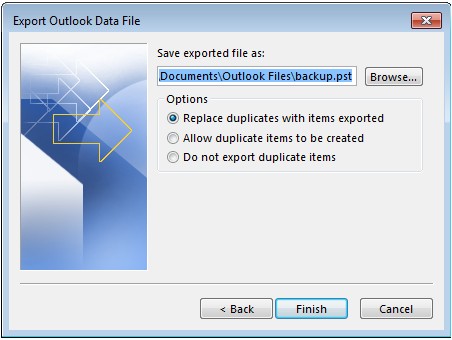
- Choose where you want the emails to be saved (a new folder like in the previous method might be a good idea) and then click "Finish"

And you're done! .pst files will back up your mail, calendar, contacts, tasks, and notes. You will need a computer with Outlook on it to open this back up. Most email clients will have similar functionality but as always, Google has all the answers. Try searching for "How do I backup my emails"