
Wi-Fi Setup and Troubleshooting for Netcomm NF4V
This guide looks at exploring the modem Wi-Fi setup for the Netcomm NF4V modem. We have also presented an audio version of the instructions to assist you in your Wi-Fi Setup below.
Wireless setup method
How to setup my Wi-Fi and change my Wi-Fi password?
- Firstly, connect your modem to your computer using an Ethernet cable as shown below. The Ethernet cable will go from one of the yellow LAN ports of the modem to the ethernet plug on your computer.
- Open your web browser (Internet Explorer, Google Chrome, Mozilla Firefox or Safari) and type in the address bar 192.168.1.1, then press ‘Enter’ on your keyboard.
- A box will appear requesting a Username and Password. Try the details below:
- Username: admin
- Password: last 6 characters of MAC address (all lower case). This information is located on the bottom of your modem.
- Once logged in click ‘Wireless'on the left.
- Ensure ‘Enable Wireless’ is ticked and enter your preferred Wi-Fi network name in the ‘SSID’ field. Click ‘Apply/Save’ to save your changes.
- Choose ‘Security’ under the ‘Wireless’ section. Select Network Authentication type as ‘WPA2-PSK’ and enter your desired Wi-Fi password in the WPA/WAPI passphrase section. Ensure your password is secure and at least 8 characters long. Click ‘Apply/Save’ to finish your Wi-Fi setup.


Troubleshooting your Wi-Fi
What factors impact my Wi-Fi performance?
Distance
The closer you are to the wireless access point, the better it will perform. Wireless connectivity (Wi-Fi) has a limited range and can only reach so far. Other devices, household appliances and physical obstructions can also reduce Wi-Fi range.
Number of users
The more user connected to your Wi-Fi, the less wireless bandwidth there is available to each device. This can cause your Wi-Fi to slow down (even if you are connected to Ultra-Fast Fibre). Where possible, connect devices to the Ethernet to conserve Wi-Fi bandwidth for mobile devices.
Interference
There are many things that can interfere with the quality of your Wi-Fi signal. Appliances like microwave ovens, cordless phones, Bluetooth speakers and baby monitors make it difficult for signal to pass by. Other obstacles like hot water cylinders, wooden and concrete walls, and anything with metal in it will also get in the way.
Other Wi-Fi Networks
Neighbours Wi-Fi is the most common cause of signal interference, especially if you live in an apartment with lots of other Wi-Fi access point around. As you move around your home, interference can make it difficult to get strong and smooth wireless signal. You can reduce interference by selecting the best Wi-Fi channel.
Device
A recent, name-brand modem is highly likely to outperform a no-name branded one. It’s best to use a modern device, like our NF18 modem, which use the latest Wi-Fi technology. Older modems can limit the speed and quality of wireless signal.
Position
It is best to have your router placed up high and centralised in the home. A single modem positioned behind a desk won’t be able spread signal very far. For tips on router positioning, check out our modem positioning guide.
I can't receive Wi-Fi reception in my bedroom?
Wireless connectivity (Wi-Fi) has a limited range and can only stretch signal so far. The further you move away from your modem, the weaker the signal will become.
A single wireless access point will struggle to reach every room, because of several factors such as the layout of your house, solid building materials, metal appliances and interference from other nearby Wi-Fi networks.
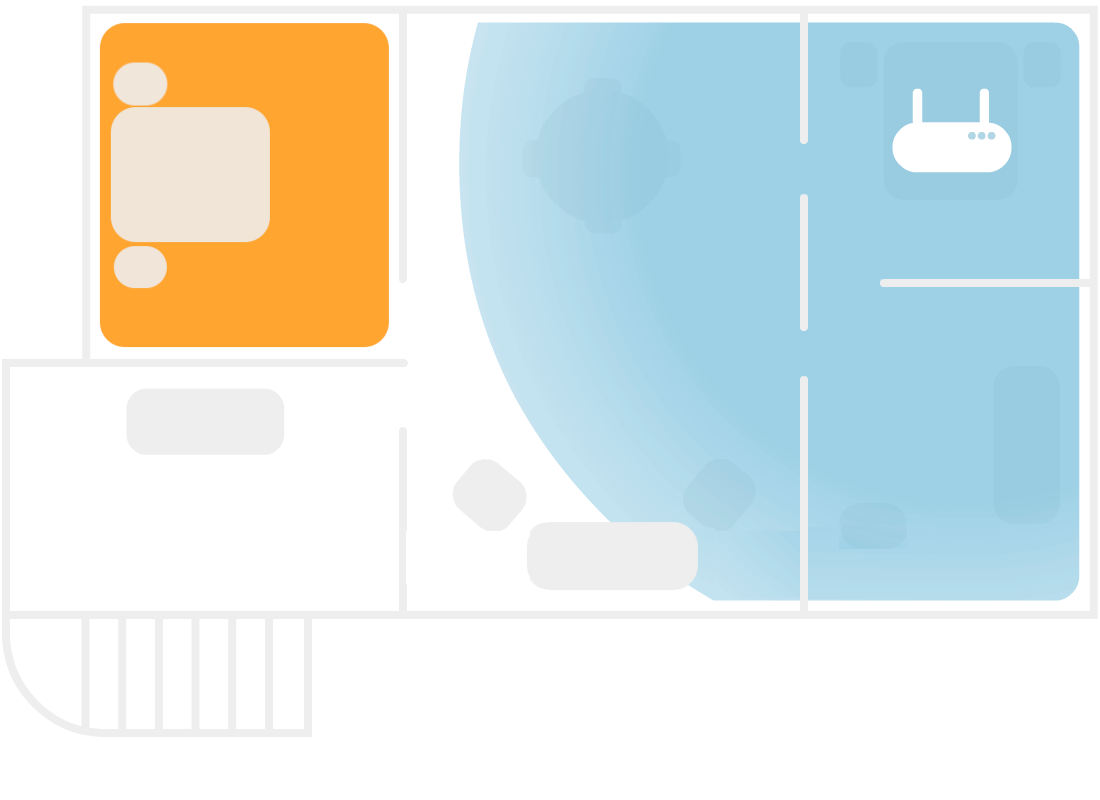
Where to position my modem for best Wi-Fi coverage?
The most important factor effecting Wi-Fi performance in your home is modem placement. Re-positioning your Wi-Fi modem can make a huge difference to your internet experience.
Tips to improve your Wi-Fi
- Don’t place your modem in a cupboard or patch panel as the walls can block your modem's Wi-Fi signal.
- Don’t keep your modem in a cupboard or patch panel as the walls can block your modem's signal.
- Make sure your modem is standing upright or is positioned the way it is intended – this allows Wi-Fi signals to transmit at their best.
- Keep it away from the kitchen - some appliances such as microwaves can interfere with the signal.
Best places for your modem
- A good rule of thumb is to place your modem in the room where you will be using Wi-Fi the most. Ensure it’s in the best location for your Wi-Fi needs:
- If gaming is most important to you, your modem is best placed in the same room as your PC or gaming console and connected to the modem via an Ethernet cable.
- If streaming via TV is most important, place your modem near your TV.
- If Wi-Fi coverage in the home is most important to you (including streaming video in all parts of your home), place your modem in a central location or by your TV with an additional mesh Wi-Fi system.