
Netcomm NB604N Wi-Fi Setup
This guide explores the Wi-Fi setup for the Netcomm NB604N modem.
- Firstly, connect your modem to your computer using an Ethernet cable as shown below. The Ethernet cable will go from one of the yellow LAN ports of the modem to the ethernet plug on your computer.

- Open your web browser (Internet Explorer, Google Chrome, Mozilla Firefox or Safari) and type in the address bar 192.168.1.1, then press ‘Enter’ on your keyboard.

- A box will ask you to log in with your Username and Password. Use the details below:
- Username: admin
- Password: admin
- If admin does not work as the password, please try the last 6 characters of your MAC address (lowercase first and then uppercase). These can be located on the bottom of your modem.

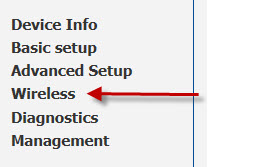
- Once logged in click ‘Wireless' on the left.
- Ensure ‘Enable Wireless’ is ticked and enter your preferred Wi-Fi network name in the ‘SSID’ field. Click ‘Apply/Save’ to save your changes.

- Choose ‘Security’ under the ‘Wireless’ section. Select Network Authentication type as ‘WPA2-PSK’ and enter your desired Wi-Fi password in the WPA/WAPI passphrase section. Ensure your password is secure and at least 8 characters long. Click ‘Apply/Save’ to finish your Wi-Fi setup.